AutoCAD 2027: Key Updates & Workflows
Executive Summary
AutoCAD 2027 focuses on smarter automation with the new Geometry Cleanup tool for fixing drafting errors and an AI-powered Autodesk Assistant that supports natural language queries and standards auditing.
It also transforms team collaboration by introducing the Checkout feature for simultaneous multi-user editing alongside deeper integration with Forma Data Management for cloud-based project tracking.
| Feature | What It Does | Impact on our Workflow |
|---|---|---|
| Geometry Cleanup | Check your drawings by instantly identifying and repairing tiny drafting mistakes like gaps, overshoots, and overlapping lines. | Reduce the time spent on manual drawing audits and repairs 70% to 90% by instantly identifying and fixing drafting errors that could otherwise require hours of tedious manual searching. |
| AI-Autodesk Assistant | AI-powered tool updated to use plain-English commands to find data, check standards, or get step-by-step guidance on how to use specific tools | Boost productivity by providing a built-in AI “tutor” that answers technical questions in plain English and automatically audits your work against office standards, potentially saving hours of manual research and compliance checking. |
| Checkout | Allow others to edit the same drawing concurrently by reserving parts of the file to work on before merging changes back into the main project. | Enable true simultaneous multi-user collaboration, eliminating “file locked” delays and manual version merging by allowing team members to edit different parts of the same drawing at once. |
Deep Dive: New Capabilities
-
Geometry Cleanup: Geometry Cleanup is a new tool that acts like a smart “checker” for your lines. Instead of zooming to every corner of your drawing, this tool automatically scans the whole page to find:
-
Gaps: Lines that don’t quite touch.
-
Overshoots: Lines that poke out too far past a corner.
-
Wonky Angles: Lines that should be perfectly flat or square but are tilted by a tiny fraction.
-
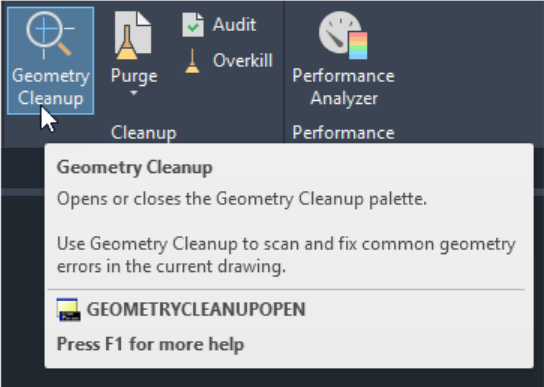
Select the objects to scan and set acceptable tolerances. The tool provides a list of every error found. When you click one, it zooms to the problem and shows you a preview of how it wants to fix it. If you like the fix, you click it, and the lines snap perfectly into place. If you meant for the lines to be that way, you just tell it to “Keep as designed.”
It turns hours of manual “hunting and pecking” for errors into a few minutes of clicking.
You can save your settings into a template so that everyone on your team is fixing errors using the exact same “rules,” keeping all your blueprints uniform.
Command Summary:
GEOMETRYCLEANUPOPEN – Opens the Geometry Cleanup palette.
GEOMETRYERRORREVIEWCLOSE – Exits the Geometry Cleanup review mode.
GEOMETRYCLEANUPCLOSE – Closes the Geometry Cleanup palette.
System Variables:
GEOMETRYCLEANUPSTATE – Indicates whether the Geometry Cleanup palette is open or closed.
GEOMETRYCLEANUPZOOMPAN – Controls whether clicking on a node in the tree view of the Geometry Cleanup palette auto-zooms to the highlighted instances.
-
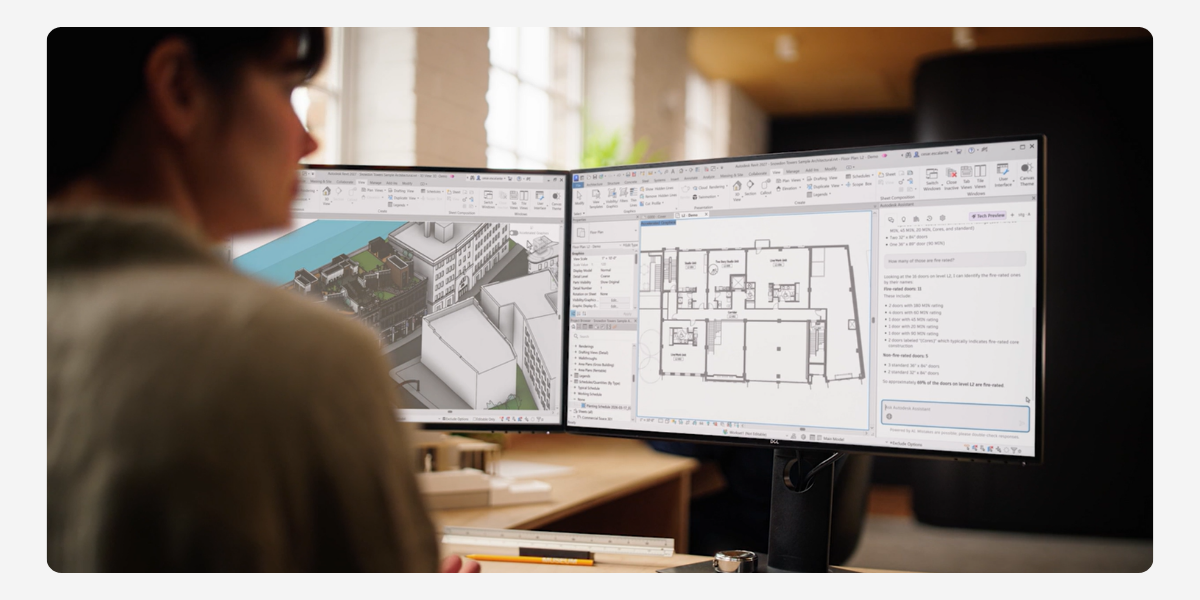
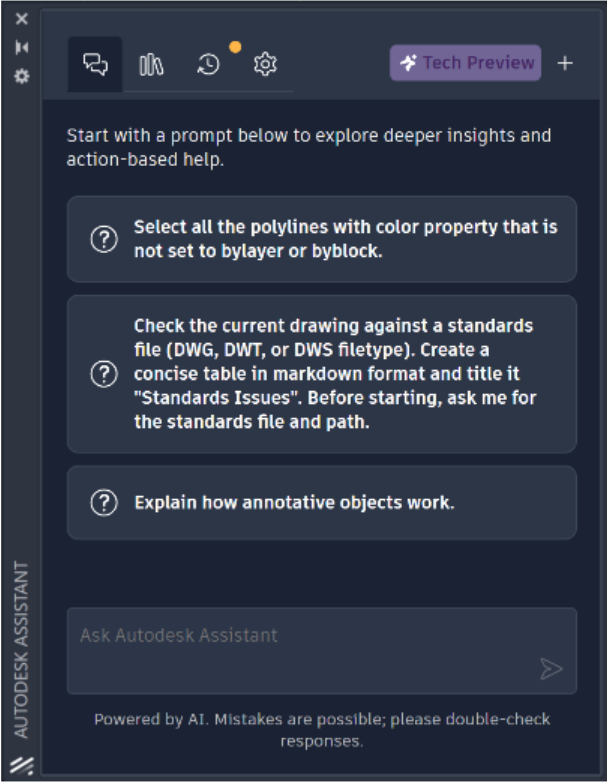
Autodesk Assistant: Instead of hunting through complicated menus or manually counting items, you can now “talk” to AutoCAD in plain English to get things done. Some of the available abilities are:
-
Check standards of the current drawing against a standards file.
-
Selection based on natural language prompt. For example, you can type, “select all text 2.5 high on layer roads“ and it will instantly highlight them for you.
-
Ability to query drawing for information, such as layers list, block usage, etc.
-
Save the prompt library and chat history.
-
Keep in mind: These new features are currently in a “Tech Preview” phase.
Command Summary:
ASSISTANTOPEN – Displays the Autodesk Assistance palette.
ASSISTANTCLOSE– Closes the Autodesk Assistance palette.
-
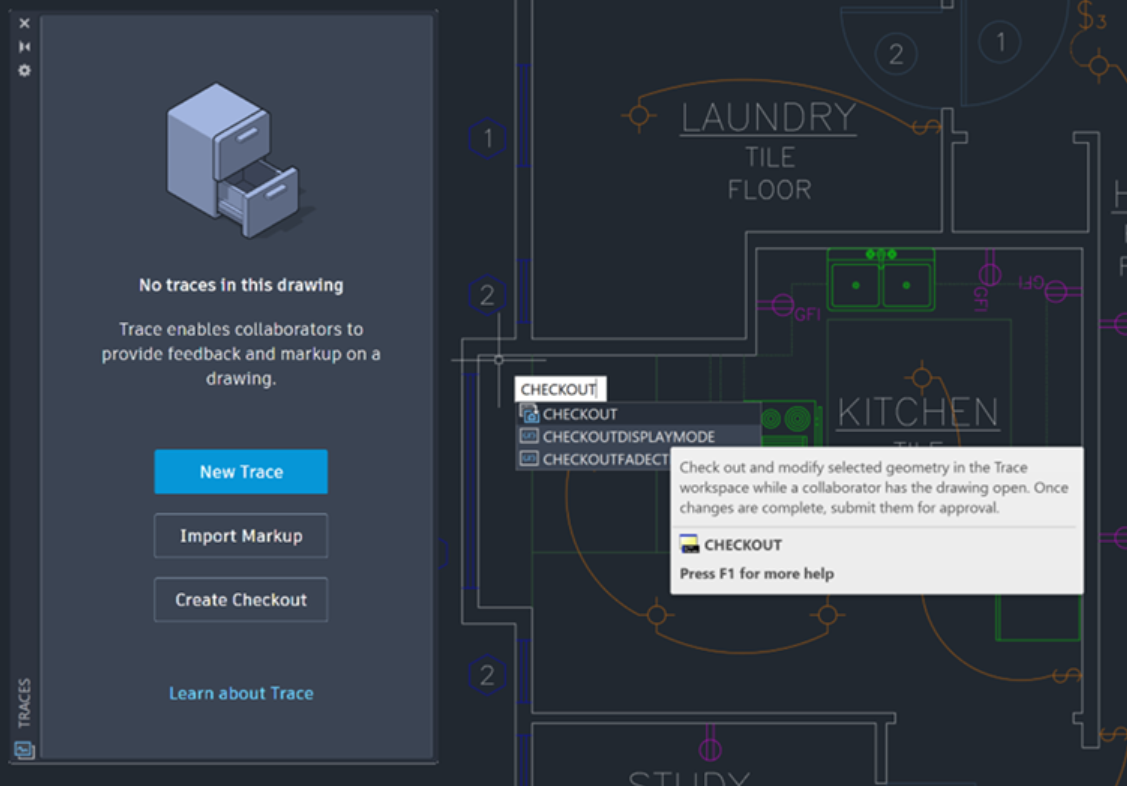
Checkout: Checkout changes how teams collaborate on drawing files by moving away from the traditional “File Locking” system. Checkout solves this by allowing for parallel collaboration through the cloud. When a DWG is hosted on Forma Data Management, the file is no longer a static item on a hard drive. It behaves more like a live document. Features of checkout include:
-
Instead of locking the entire file, you “Check Out” the drawing to signal to the team that you are currently making edits.
-
Other team members can see exactly who has the file checked out. They can still open the file to view it or use it as an Xref, ensuring they are always seeing the most recent “Checked In” version.
-
Once your edits are complete, you Check In the file. This uploads the changes, creates a new version in the cloud history, and releases the edit rights to the next person.
-
Command Summary:
CHECKOUT – Check out and modify selected geometry in the Trace workspace while a collaborator has the drawing open. When finished, submit your changes for approval.
New System Variables
CHECKOUTFADECTL – Controls the amount of fading when TRACEMODE is inactive. The setting only applies to objects included in checkouts.
CHECKOUTDISPLAYMODE – Controls the visibility of checked out objects in the trace and the drawing.
Known Issues & Compatibility
-
File Versions: There is no change to the DWG file format (Version 2018).
-
Plug-ins: If you use third-party plugins or in-house C++ (.ARX) or .NET (.DLL) tools, they must be recompiled using the new AutoCAD 2027 SDK and Visual Studio 2026. They will likely not load or run if simply copied over from 2026. Current LISP routines should continue to work as there are no new or deprecated AutoLISP functions in the 2027 release.
-
Hardware: 16GB basic memory is suggested. Click here for full System requirements for AutoCAD 2027 including Specialized Toolsets.
Next Steps & Resources
About The Author

We are the leading provider of civil engineering and survey software solutions and services in Australia.