In the modern engineering landscape, seeing is believing. Today, visualisation is no longer a luxury—it’s an industry requirement.
Transitioning your design from a technical model to an immersive environment doesn’t just make your work look “pretty”; it changes the way stakeholders interact with your vision.
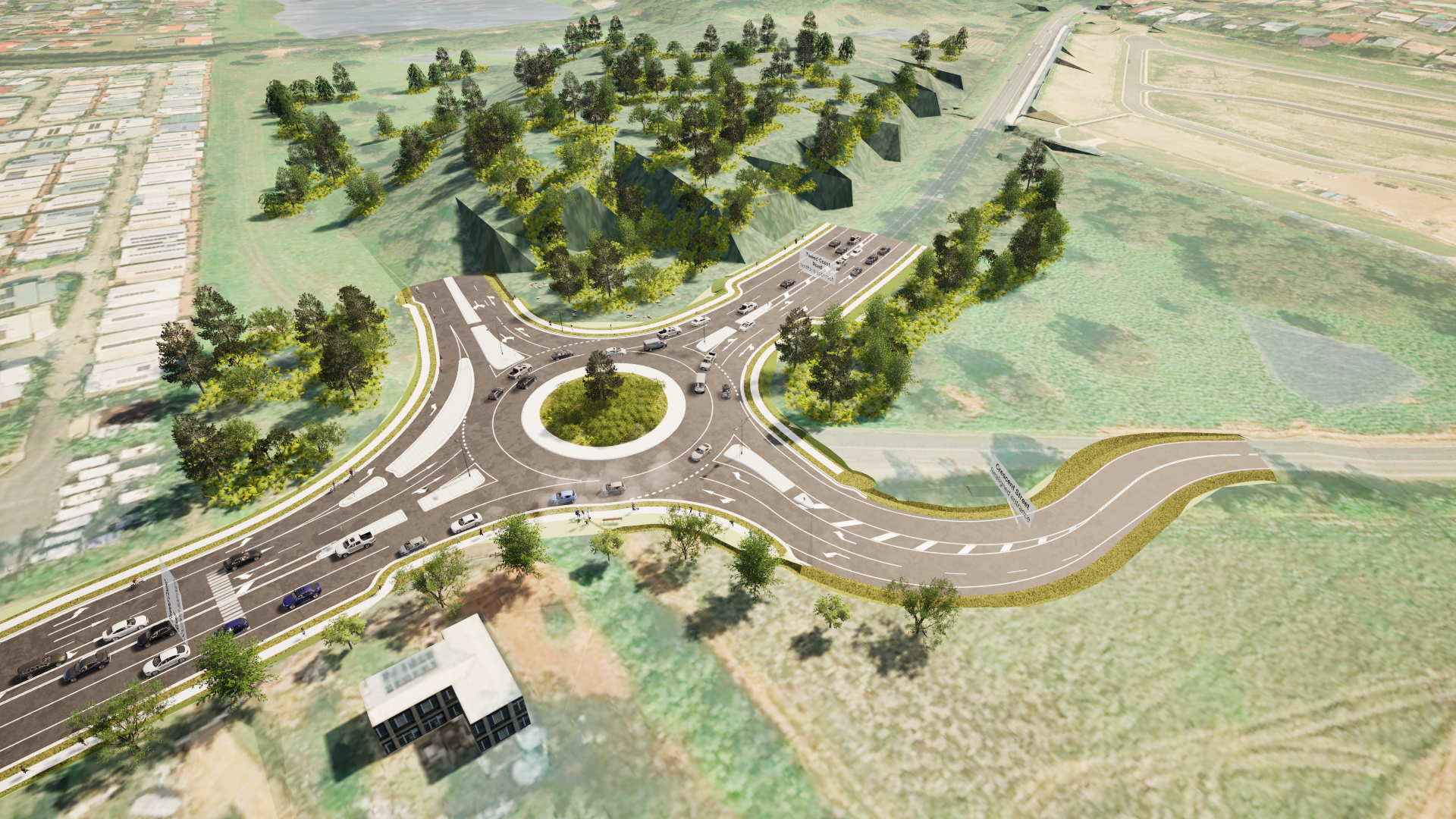
Twinmotion Output – high realism images and videos
Why Visualisation Matters
-
Demystifying Complexity: Non-technical stakeholders often struggle to interpret technical drawings. Visuals bridge the gap, providing immediate clarity on scope and outcomes.
-
Accelerated Approvals: When everyone can see exactly what the finished project will look like, decisions are made faster and with more confidence.
-
Design Validation: Use simulations to test real-world scenarios during the planning phase, catching potential issues before they become costly site errors.
-
Competitive Edge: Enhancing your marketability with cinematic-quality presentations sets your firm apart in a crowded field.
The Power Couple: Civil Site Design + Twinmotion
While Civil Site Design offers a robust, fully rendered 3D modelling environment, pairing it with Twinmotion takes your presentation to the next level, with minimal extra effort. Any work you’ve already put into the Model Viewer – such as setting up materials, placing buildings, adding linemarking, or positioning signs – is preserved when you exchange your design with Twinmotion.
From there, you can quickly add:
-
Life and Realism: Add moving vehicles, pedestrians, and localized weather effects.
-
Diverse Outputs: Generate high-resolution images, 4K videos, 360° panoramas, and even interactive presentations.
-
Speed: Twinmotion is built for speed and simplicity, empowering you to build animations with a low investment of time and specialised knowledge.
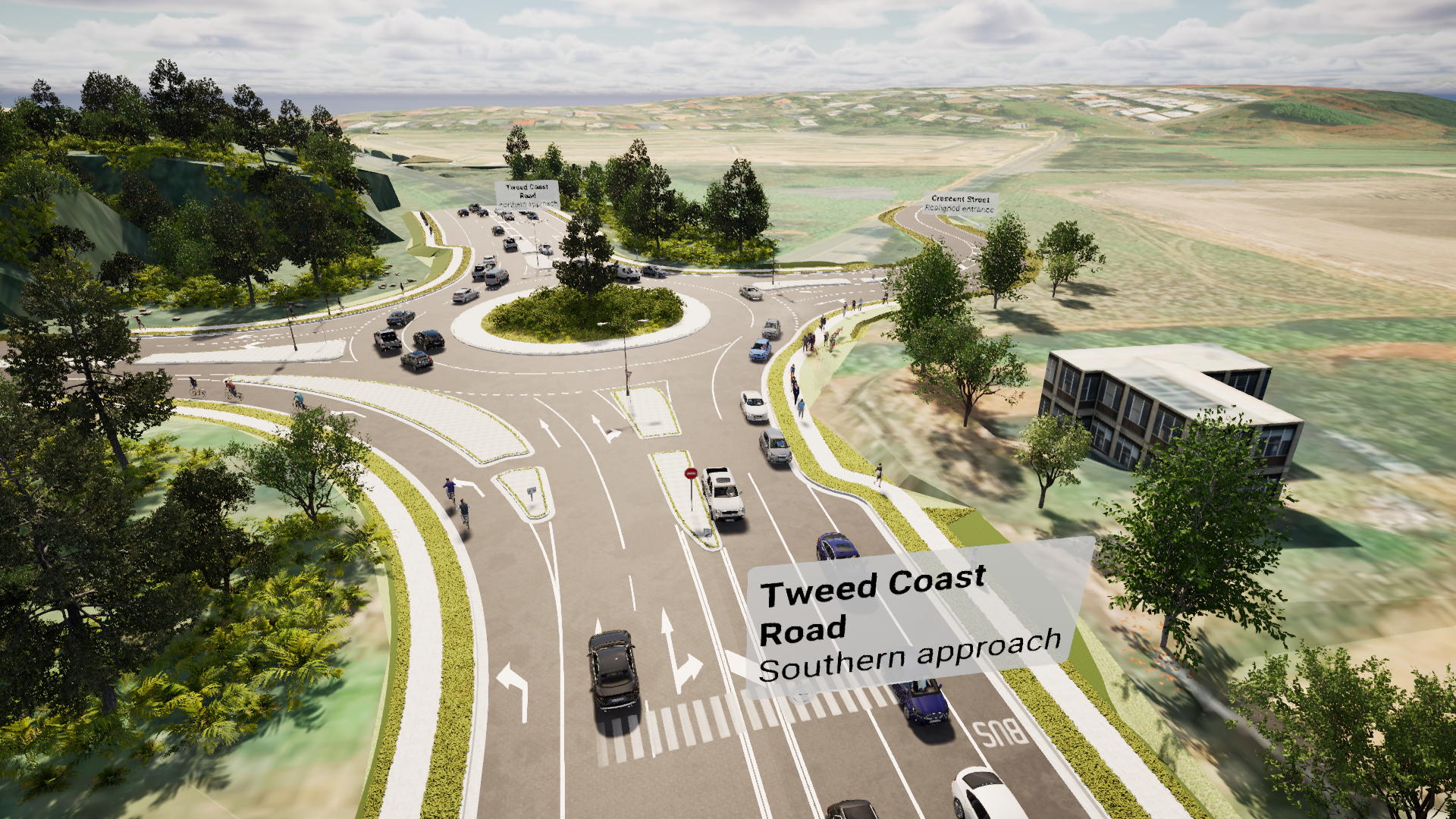
Twinmotion – build realism into your scene
How to Get Started
-
Autodesk AEC Collection Users: Twinmotion is included in your subscription (listed as Twinmotion for Revit). Don’t let the name fool you—Twinmotion is an exceptional fit for civil infrastructure projects.
-
Other Users: If you aren’t on the AEC Collection, Twinmotion may still be accessible. Depending on your annual revenue, it may be available at no charge, or it can be easily added via a standard subscription.
Twinmotion Interface and Navigation
Twinmotion is designed with an intuitive, “gaming-style” interface that prioritises creativity over complex coding.
Understanding the Workspace
The Twinmotion interface is logically segmented to keep your workflow fluid:
-
The Library (Left): Your treasure chest. With over 10,000 assets, you can drag and drop everything from realistic materials and vegetation to vehicles and “city furniture” (benches, lights, etc.) directly into your scene.
-
The Data Tree (Right): Your organizational hub. Here you can select, delete, or edit any object in your scene. This panel also manages the time of day, season, sky conditions, and even wind speed for your scene.
On the right you’ll also find the Properties panel where you view and edit properties for objects you select and when creating in your scene. -
Menu and Object Contro (Top): Do the fundamentals from the menus (eg: open, new) and manage object edit modes (scale, rotate) from here.
-
The Control Center (Bottom): This is where much of the heavy lifting happens. It’s dedicated to importing models, editing, “populating” objects, and final media export.
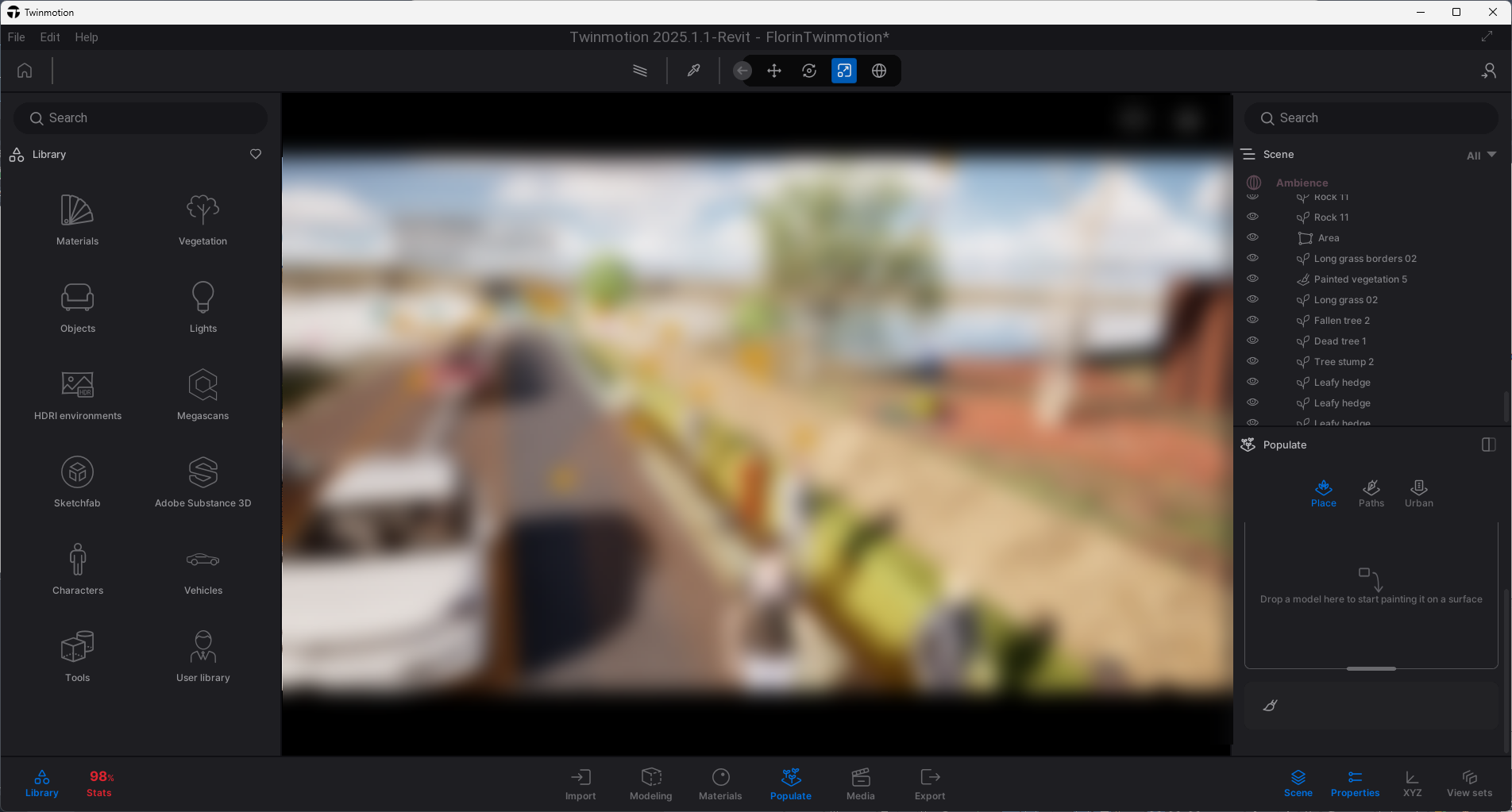
Twinmotion interface
The Workflow: From Design to Import
Getting your data into Twinmotion is a straightforward process, regardless of your primary design tool.
For Civil Site Design Users:
-
Open Model Viewer and finalise your materials, linemarking, and signage.
-
Navigate to the Outputs tab and hit Export.
-
Save the file as a .obj.
-
In Twinmotion, click Import, select your file, set the scale to 100 (this correctly converts centimeters to metres) and import.
Pro Tip: If your design changes, simply update the .obj file and run a ‘Sync’ in Twinmotion to reflect the input changes.
For Civil 3D Users:
Move your data into Infraworks, export as an .fbx file, and import that directly into Twinmotion.
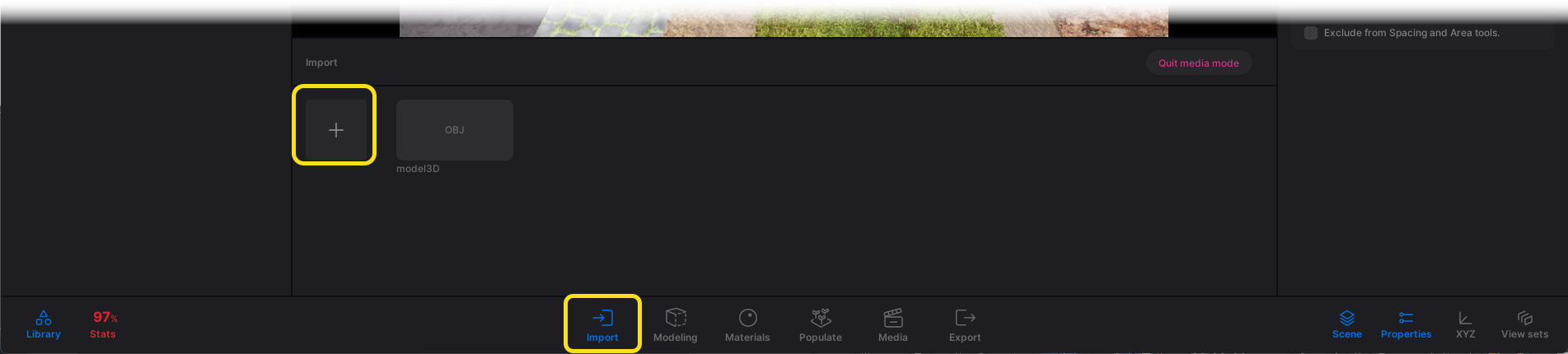
Import 3D data into Twinmotion
Power User Tips: Navigating and Detailing
Once your model is in, the “fun” really begins. Here is how to navigate like a pro:
-
Movement: Use your mouse to pan, zoom, and orbit (or use the keyboard arrows). Use keyboard shortcuts 1 through 5 to adjust your “fly speed”—perfect for moving from a bird’s-eye view to a pedestrian-level detail.
-
The “F” Key: Lost in a large model? Select an object in the data tree and press ‘F’ to “Focus” or zoom right to it.
Adding Realism: 3D Materials, Adding Objects, Populate and Animate
Use the Library to find objects, then drag and drop to place in your scene. They’ll automatically lock onto your surface mesh and you can easily scale, rotate and copy them about.
Look for 3D Grass (Materials > 3D Grass) and drag it onto your meshes for realistic 3D grass. For trees, simply drag them from the library and use the transform tools to scale or rotate them.
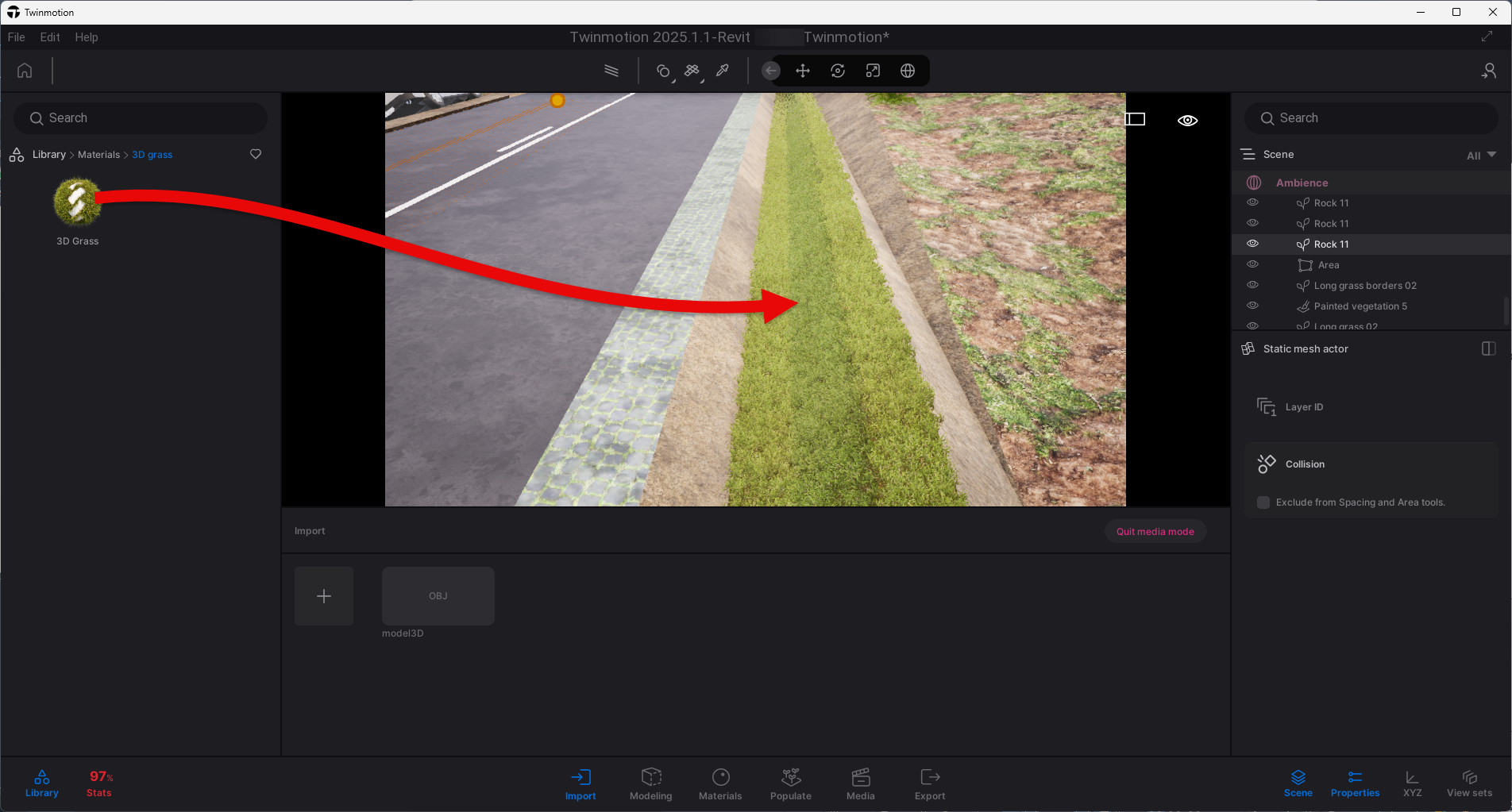
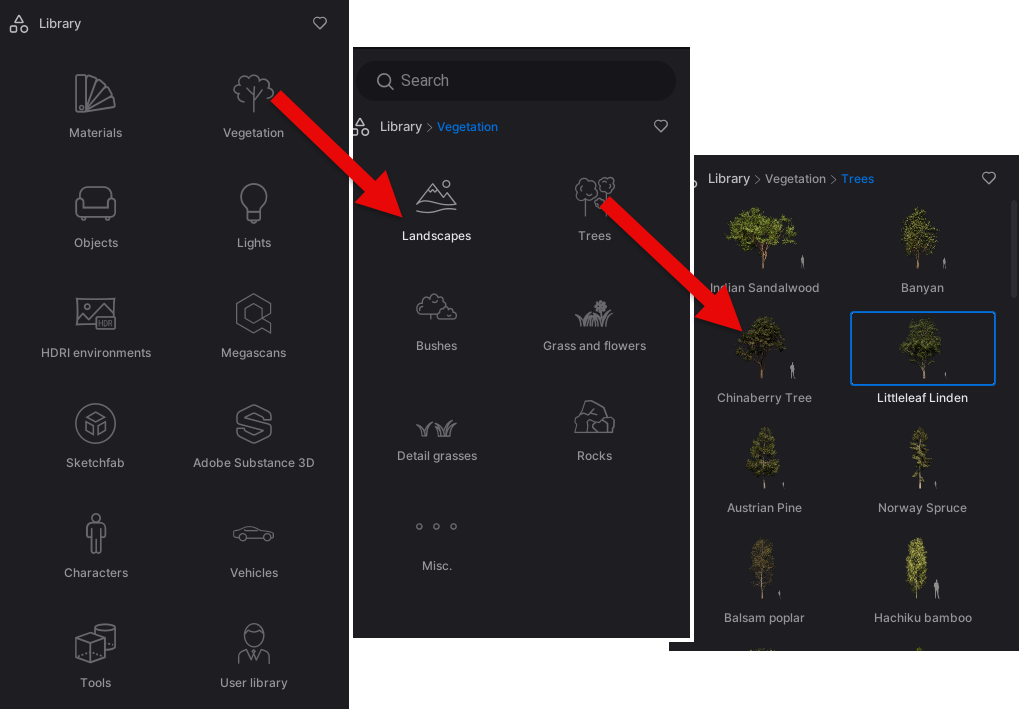
If you have a large area to cover, don’t place objects one by one.
-
The Propagate Tool: This is a game-changer for civil projects. You can select a collection of plants or trees and “paint” them onto an area to rapidly create a lush, varied landscape.
-
Path Animation: Want to show how traffic or pedestrians flow through your design? Use the Path tool. You can draw a line and animate cyclists, vehicles, or people along it. You can even control the density and speed to simulate peak-hour traffic or a busy park.
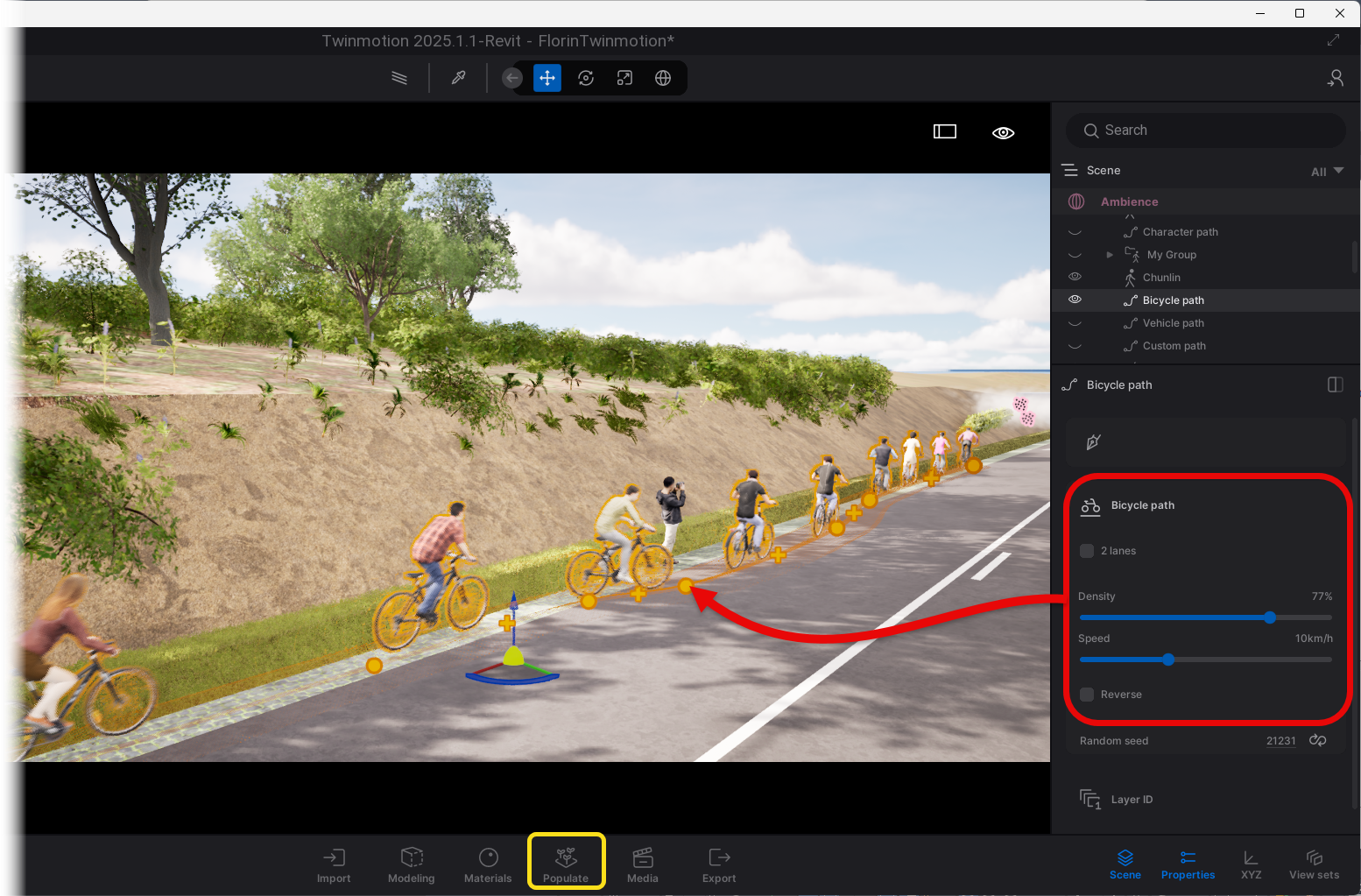
The populate tool scatters and paints objects (such as vegetation), as well as animates along paths
Bringing it All Together: High-Impact Outputs
Once your scene is populated and the lighting is just right, it’s time to share your vision with the world. This happens in the Media Tab at the bottom of the interface.
Creating Cinematic Videos You don’t need to be a film editor to create professional-grade fly-throughs:
-
Pick your views: Move your camera to a starting position and save it as a “Keyframe.”
-
Set the path: Move to your next vantage point and save another.
-
Adjust Timing: Select the duration between these views.
Twinmotion automatically creates a smooth camera animation that glides through your site, giving stakeholders a true sense of scale and flow. You can even change time of day, season and sun/rain settings between views.
Versatile Image Exports Beyond video, you can instantly snap high-resolution images or create 360-degree panoramas that allow clients to “stand” in the middle of your design using a mobile device or VR headset.
See it in Action: Watch Our Webinar
We believe this workflow is a game-changer for the civil infrastructure industry—so much so that we hosted a dedicated webinar to show it in action.
In this deep-dive session, we walk you through the entire journey:
-
Exporting a live model from Civil Site Design.
-
Setting up the environment and assets in Twinmotion.
-
Pro-tips for building a realistic scene quickly.
-
Generating the final media outputs.
About The Author

We are the leading provider of civil engineering and survey software solutions and services in Australia.