Beyond Text – Using Annotative Dimensions, Hatches, and Multileaders in AutoCAD
After you’ve set up annotative text styles, the real productivity gains come when you extend annotative intelligence to the rest of your annotations: dimensions, hatches, and multileaders. These objects all share the same underlying principle as annotative text—define how they should look on paper, and let AutoCAD adjust them for any scale.
Annotative dimension styles
Dimensions are prime candidates for annotation scaling. You want consistent text height, arrow size, and overall legibility across general arrangements and detailed callouts, even when they’re plotted at different scales.
To set this up:
-
Open DIMSTYLE and create a new style (or copy an existing one).
-
On the Fit or Symbols and Arrows / Text tabs (depending on AutoCAD version), enable Annotative.
-
Set the text height, arrow size, extension line offsets, and other values as paper sizes.
-
Save the style and make it current.
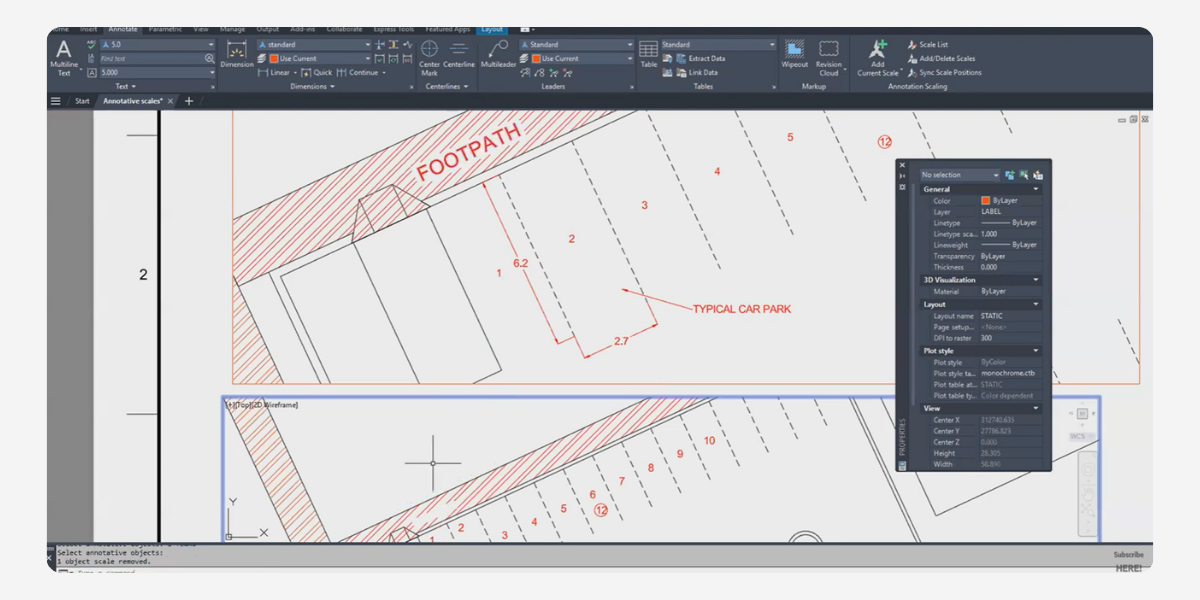
Once applied, any dimension using this style will scale according to the current annotation scale. You can dimension at 1:100, then switch to 1:50 for a detail area and keep using the same style—AutoCAD handles the size differences.
Annotative hatches
Hatches can be a problem at different scales: too dense at small scales, too sparse at large ones. Annotative hatches solve this by tying the hatch pattern scale to the annotation scale:
-
When creating a hatch, enable the Annotative option.
-
Define your hatch pattern and spacing as you want it to appear on paper.
As you switch scales, the hatch pattern is automatically adjusted so that it looks appropriate in each viewport. This keeps section hatching and material patterns readable without constant trial-and-error on scale factors.
Annotative multileaders
Multileaders (MLEADERS) bring text and arrows together, so they benefit heavily from annotative behaviour. In the Multileader Style Manager:
-
Create or edit a style.
-
Enable Annotative for the style.
-
Set text size, arrowhead size, and landing distances as paper sizes.
-
Save the style and use it for all your callouts.
Now your leader text and arrowheads will always read clearly, regardless of whether the viewport is 1:20 for a detail or 1:200 for an overall plan.
Working across model space and layouts
The beauty of using annotative objects consistently—dimensions, hatches, and multileaders—is how well they behave both in model space and in layout viewports:
-
In model space, you work at a logical annotation scale. As you switch scales to work on different parts of the drawing, your annotations resize accordingly.
-
In layouts, each viewport can have its own scale, and annotative objects will appear at a consistent plotted size in every viewport that includes their annotation scale.
Combined with status bar controls for annotation visibility and automatic scale assignment, this workflow removes a huge amount of manual clean-up when preparing sheets. Instead of juggling multiple dimension styles and leader settings per scale, you lean on a single set of annotative styles that “just work” wherever they’re used.
About The Author

We are the leading provider of civil engineering and survey software solutions and services in Australia.